 Xur
XurStart with one profile.
Xur runs on a Bazzite host. Its web manager brings GPU workloads, desktops and maintenance together.
Before you install
You need a UEFI-capable x86-64 computer, Internet access and a target disk of at least 64 GiB. Plan additional space for models, games and container images. Check the release notes for the hardware and installation paths tested in that release.
Installation erases the selected disk. Back up its data first. Xur is in early development; keep recovery media available.
Install and sign in
- Open Download Xur for the online installer and simple Rufus USB instructions. Read its release notes before installing. An application update archive is not a bootable installer.
- Boot the installer in UEFI mode. It downloads Bazzite and attempts a signed Xur app refresh when the network is available.
- Open the console's HTTPS address on port
8443, accept this machine's self-signed certificate and enter its setup code. Create a manager account. - Select the target disk and choose Erase disk and install Xur. Reboot when installation completes.
For static IPs or a USB-supplied setup code, follow Network settings and answer YAML. The answer file does not approve disk installation.
Create a profile
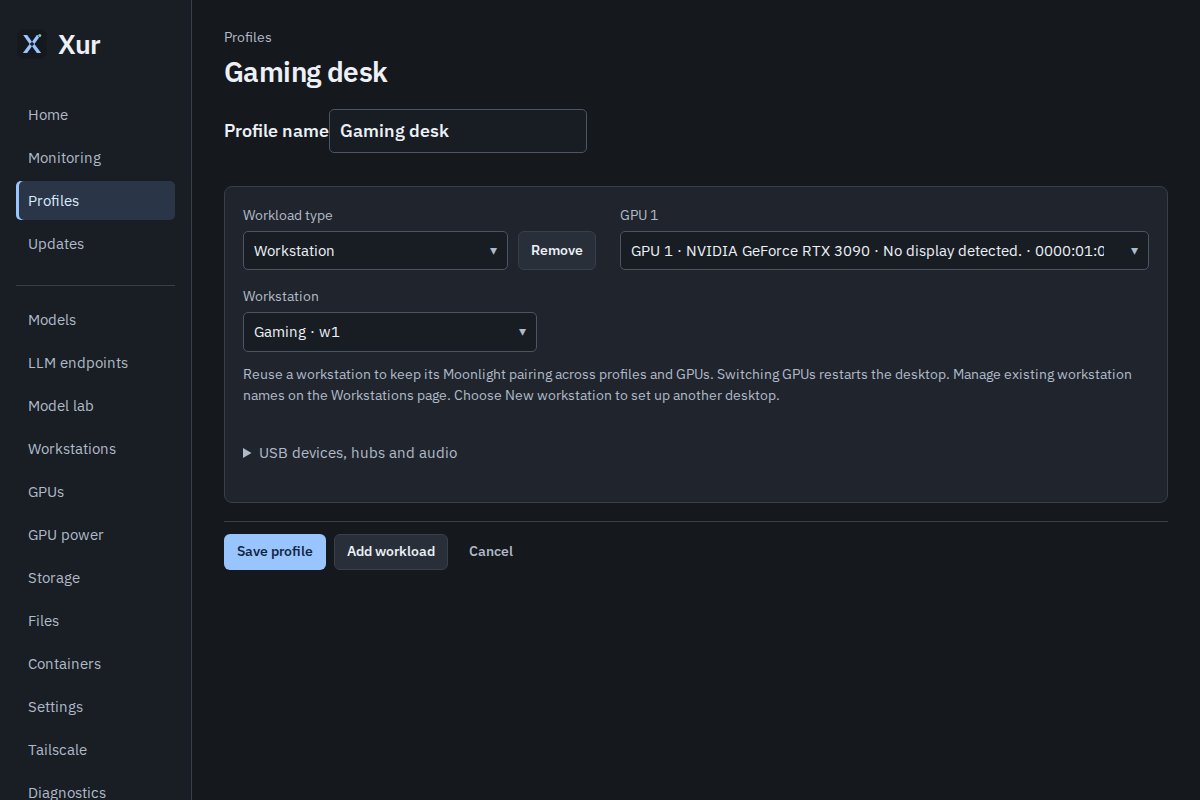
- Open Profiles and create a profile with a descriptive name.
- Add a workstation, model or container. Select its recipe and GPUs. Each GPU belongs to one workload at a time.
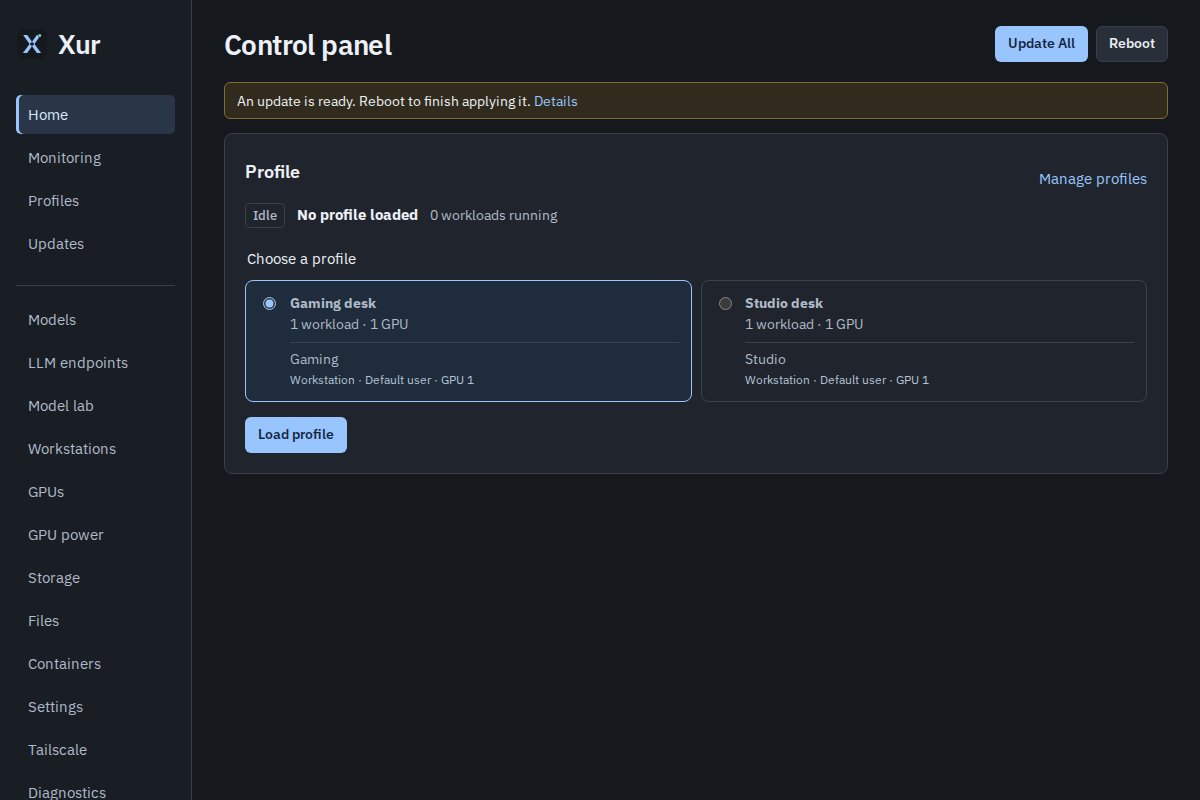
- Save the profile, return to Home and load it.
Independent workloads start in parallel. If one fails, successful workloads stay available. Read the failed action's error before using Resume. Cancel change stops queued work and lets actions already claimed finish; it does not undo completed changes.
Find your way around
Home holds update, reboot and profile controls. Monitoring shows resource use. Workstations manages desktop identities and streaming. Files browses storage and workstation homes. Settings holds time, access and backup options.
For remote management, authorize the host under Tailscale and use its HTTPS Serve address. Keep setup codes, QR codes, API keys and personal addresses out of public screenshots.