 Xur
XurPut local models to work.
Select a model, assign its GPUs and connect a client once the engine is ready.
Choose a workload
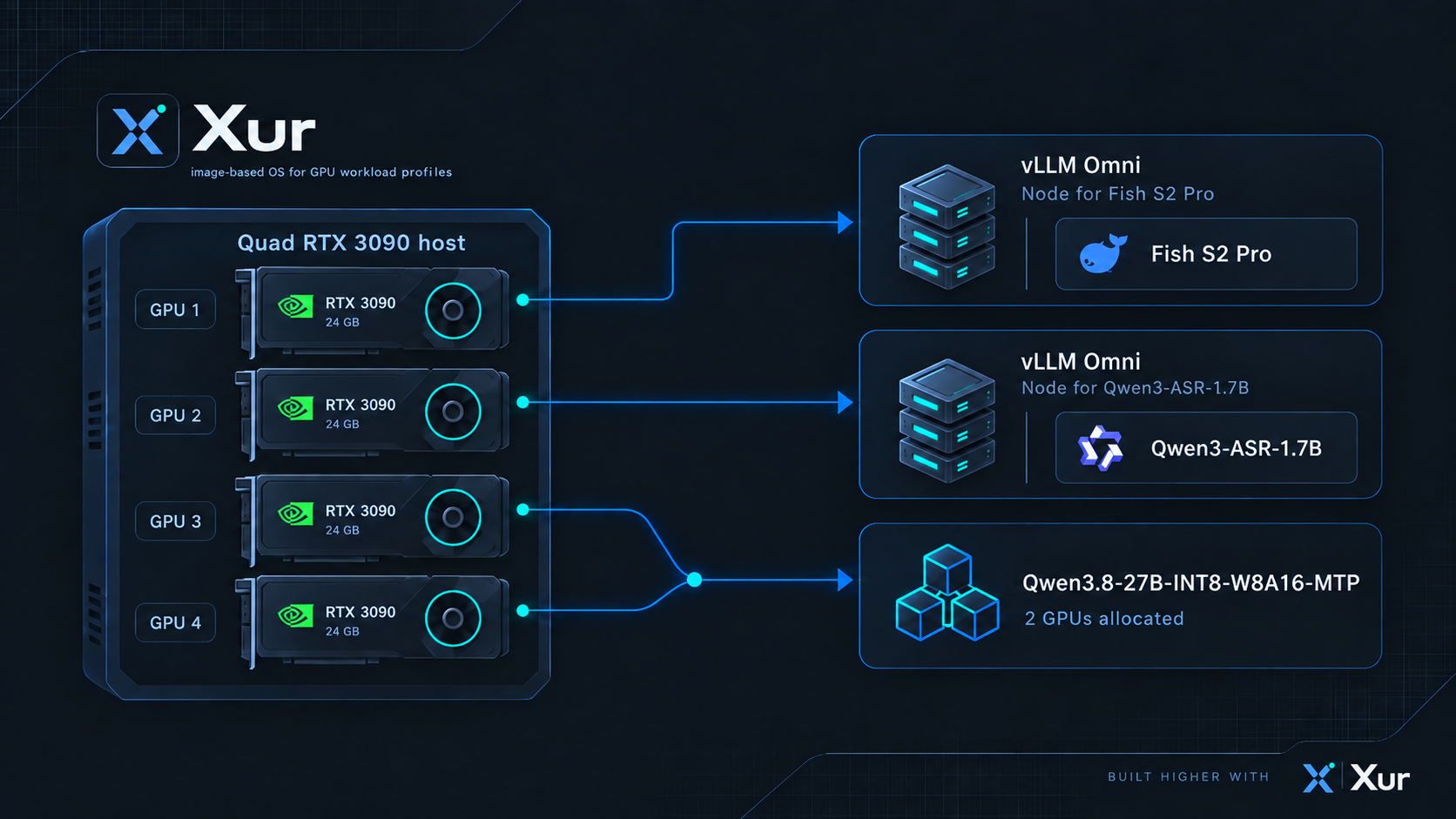
Add a model workload to a profile and select the appropriate engine and model recipe. The editor offers llama.cpp, vLLM and vLLM-Omni selections. Check the model's VRAM needs and compatibility; being listed by a model publisher does not guarantee it works with every engine or GPU.
Use Settings to save an HF token when a repository requires one. Obtain any necessary model access from its publisher. The first load can take longer while weights and engine images download and warm up.
Connect to an active language model
- Wait for the profile to report the model ready.
- Open LLM endpoints and copy its Base URL.
- Create a Testing key under Settings → API keys. Use it as your client's API key.
- Open the model list to find the exact served model ID, then select that ID in your OpenAI-compatible client.
Use the Tailscale HTTPS address for clients on another network. Keep the API key private; revoke it when it is no longer needed.
A running container alone does not mean a model is ready. If the endpoints page is empty, check the profile operation and workload logs.
Try a conversation or benchmark
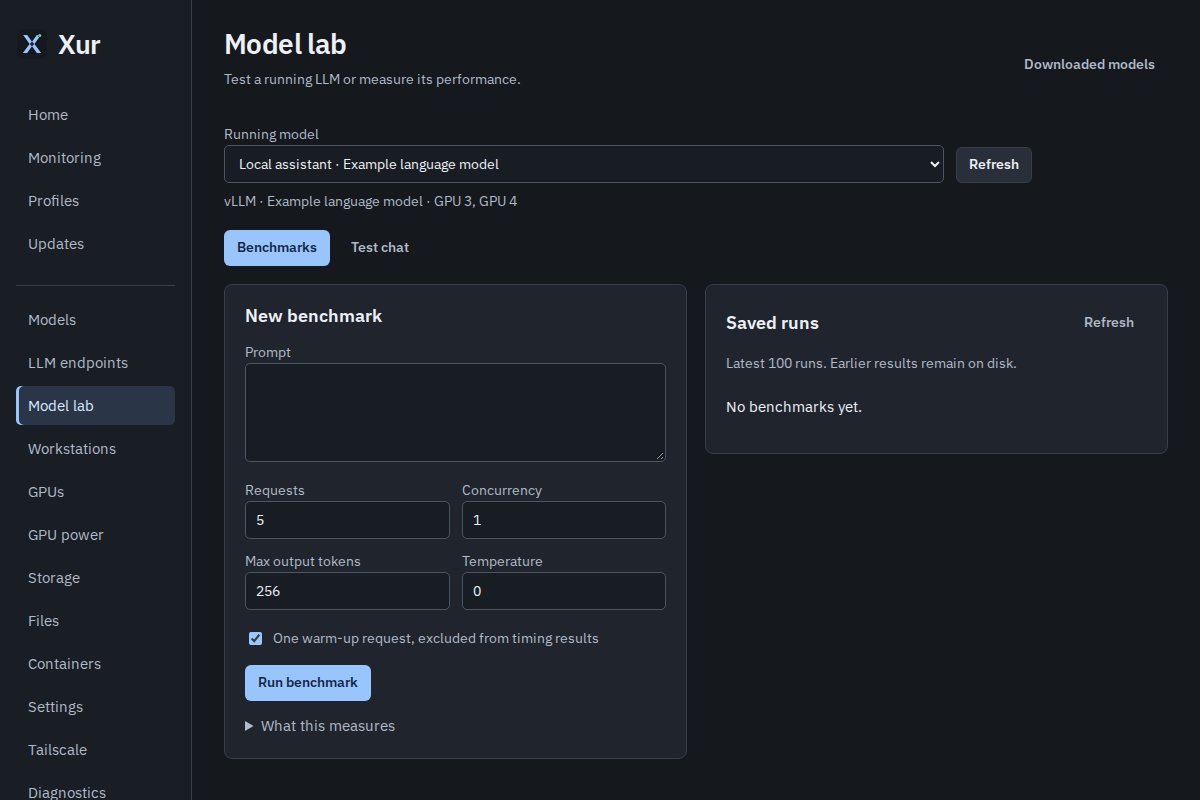
Model lab provides basic test chat and saved benchmarks. Results retain model identity, the running workloads and sampled VRAM alongside timing and response results. Compare runs under similar workload and prompt conditions.